Edit a PPTX Without PowerPoint: Fix One Slide in Someone Else's Deck
Edit a PPTX without PowerPoint: fix one slide in your browser without converting the deck, then send back the same .pptx. Free, no account.
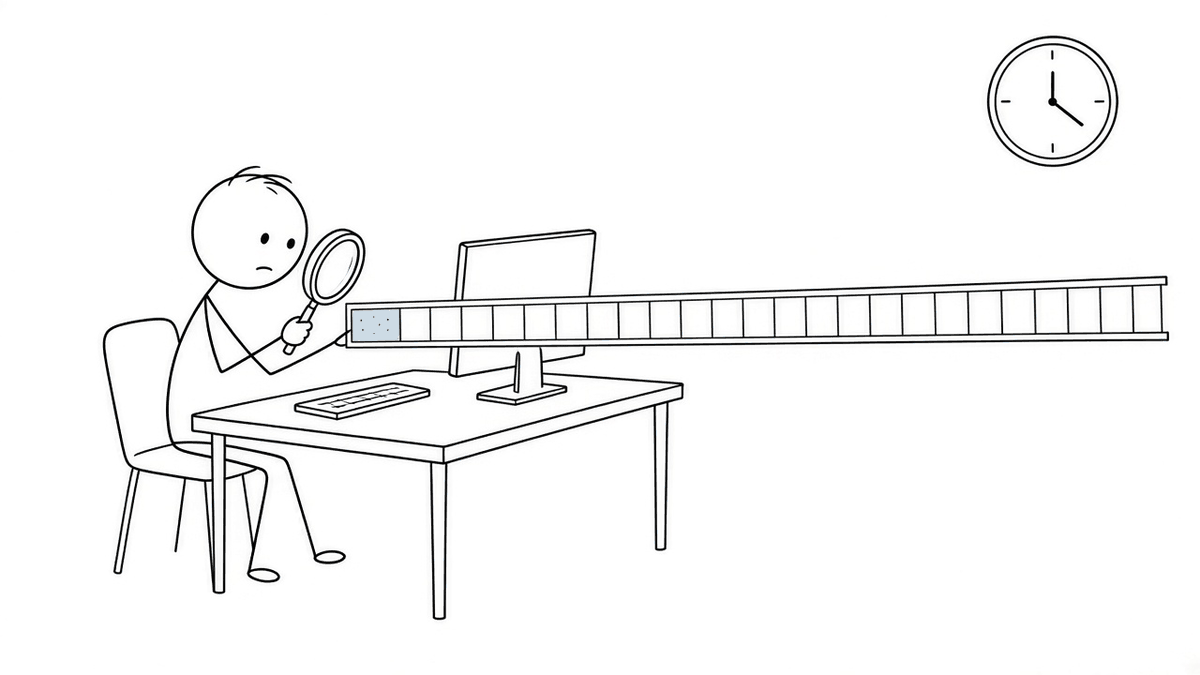
It's 4:52 p.m. A colleague sends you a 31-slide deck with a short note: "Can you fix the date on slide 7? Presenting at 9 tomorrow. Thanks!!"
The two exclamation marks are doing a lot of work.
You open the attachment and find the problem right away. Slide 7 says the launch is in "Q3 2025." It should say 2026. That's one character. Changing it should take four seconds.
Then you remember you're on a Chromebook. Or a borrowed Mac. Or a library computer that has a web browser, a printer that takes coins, and nothing else. No PowerPoint anywhere. It's a bit like being handed a padlocked bicycle and asked to adjust the seat.
Here's how to fix that one character without making things worse, and why "making things worse" is a real risk.
A .pptx is a zip of slides
A PowerPoint file looks like one thing. It's really a folder full of small things, zipped into one file, using the same Office Open XML format as Word's .docx. If you rename a copy of deck.pptx to deck.zip and open it, you'll find something like this:
ppt/presentation.xml: the table of contents. It lists the slides and, importantly, their order.ppt/slides/slide1.xml,slide2.xml, and so on: one file per slide. Each one describes the shapes on that slide, such as text boxes, rectangles, and pictures, and the text inside them.ppt/slideLayouts/: templates like "Title and Content" or "Two Columns." They decide where a slide's title box goes by default.ppt/slideMasters/: the boss of the layouts. Background, theme fonts, the logo in the corner of every slide.ppt/theme/: the color palette and font choices.ppt/media/: every picture in the deck, as normal image files.
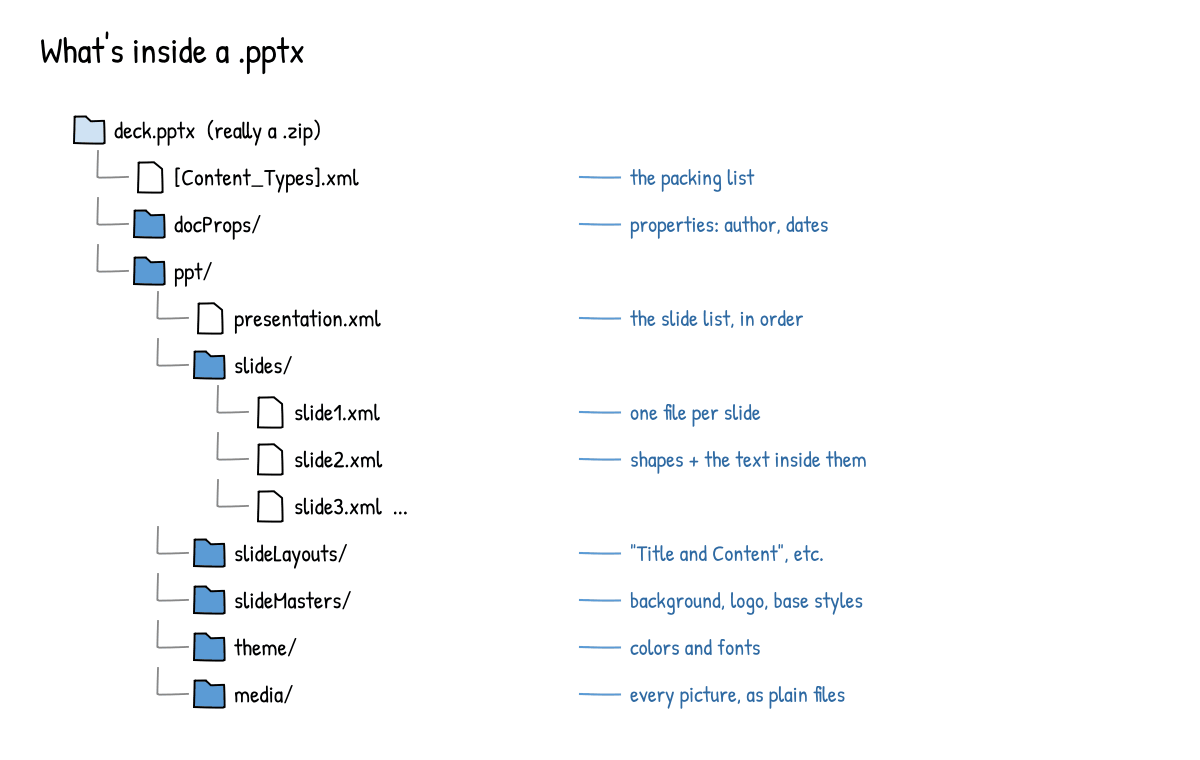
A fun detail: the file names don't have to match the order you see. slide7.xml isn't promised to be slide 7. The order lives in presentation.xml. If someone dragged slides around last week, file 12 might be showing up in third place. The deck doesn't mind. It just reads the list.
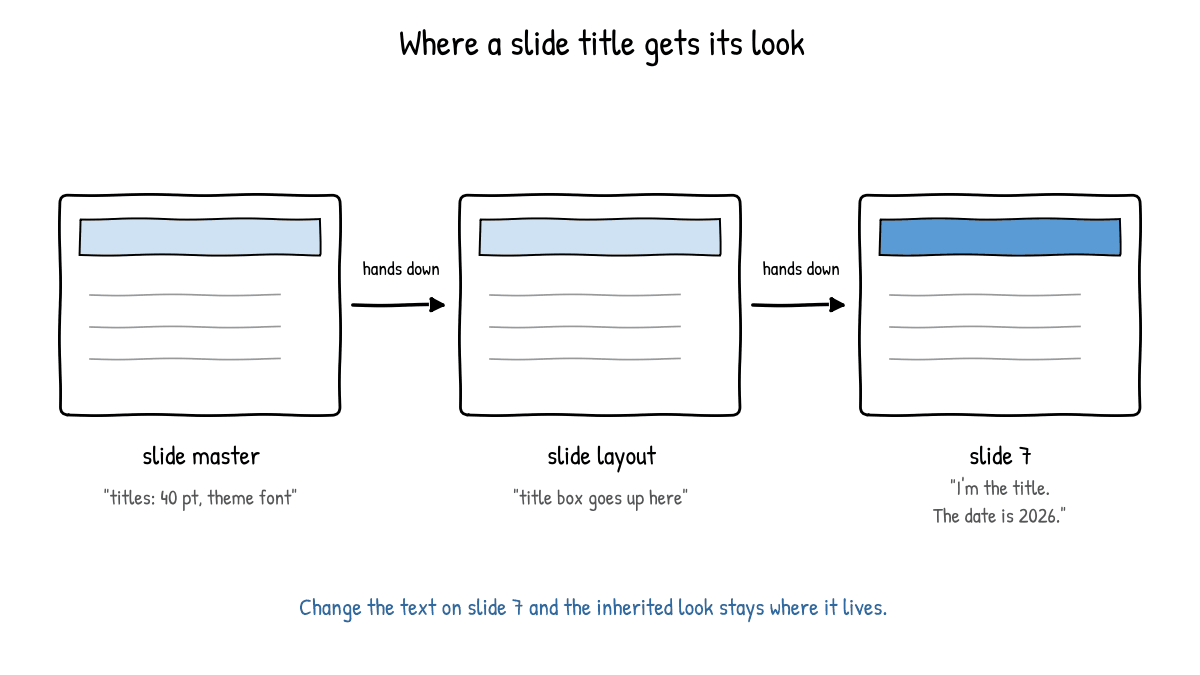
The layout and master files are where a lot of a deck's look actually comes from. A title on slide 7 may not store its own font size at all. It may just say "I'm the title placeholder," and the size comes from the layout, which may get it from the master. It's a chain of hand-me-downs, like a family where everybody's coat used to belong to an older cousin.
Why "just open it in Google Slides" can shift things
The obvious workaround is to upload the deck to Google Slides, fix the date, and download it again as .pptx. Sometimes that works fine. Sometimes it doesn't, and the reason is worth understanding.
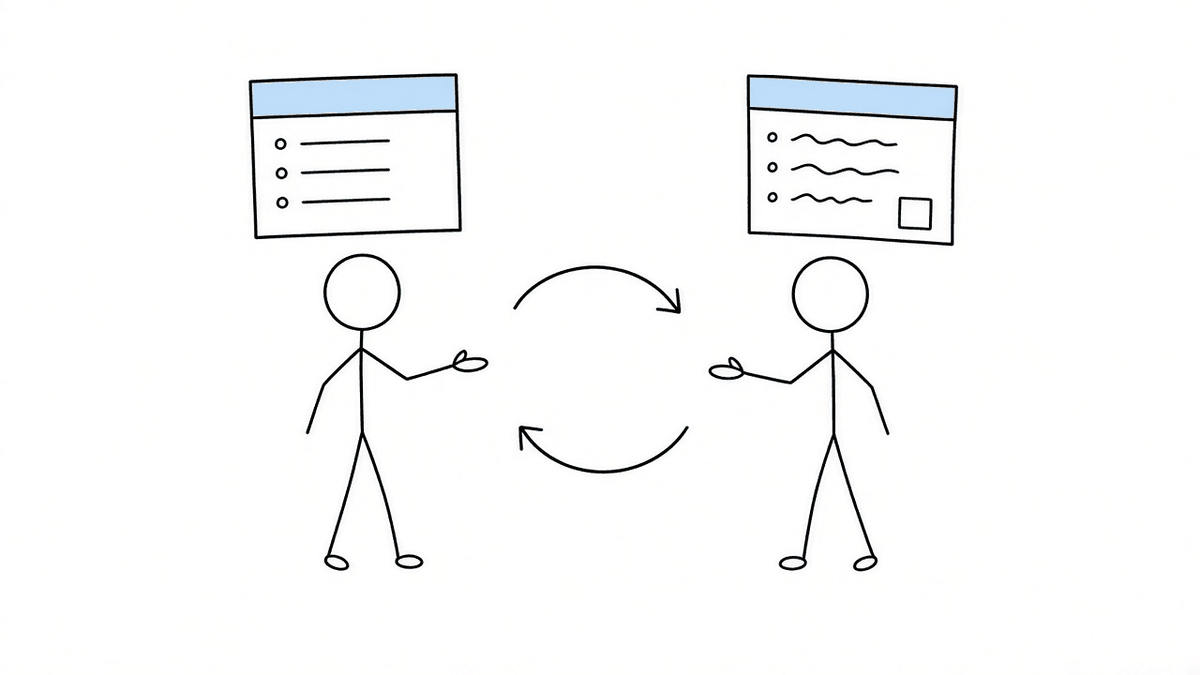
Google Slides doesn't edit the .pptx itself. It converts the deck into its own format, lets you edit that, and then converts it back to .pptx when you download. That's two translations. And every translation is a chance for something to get lost.
Think of translating a joke from English to French and back. The words mostly survive. The timing doesn't. Features that one program describes one way and the other describes slightly differently can come back changed: line spacing, text box padding, how a layout inherits from a master, how bullets are indented. So the slide-7 fix comes back with a title that's wrapped onto two lines, or a logo that's moved a little, on slides nobody touched.
We wrote about the same thing happening to Word files in Google Docs Broke Your Word Formatting. The cause is the same: a round trip through a different format.
The safest edit is the smallest one
If the problem is one wrong character on one slide, the ideal fix changes one character on one slide and leaves everything else alone.
That's the advantage of editing the .pptx directly instead of converting it. When you change the date on slide 7, the change is in slide 7's text. The other 30 slides, the layouts, the master, and the pictures don't need to be translated into anything. They just come along for the ride.
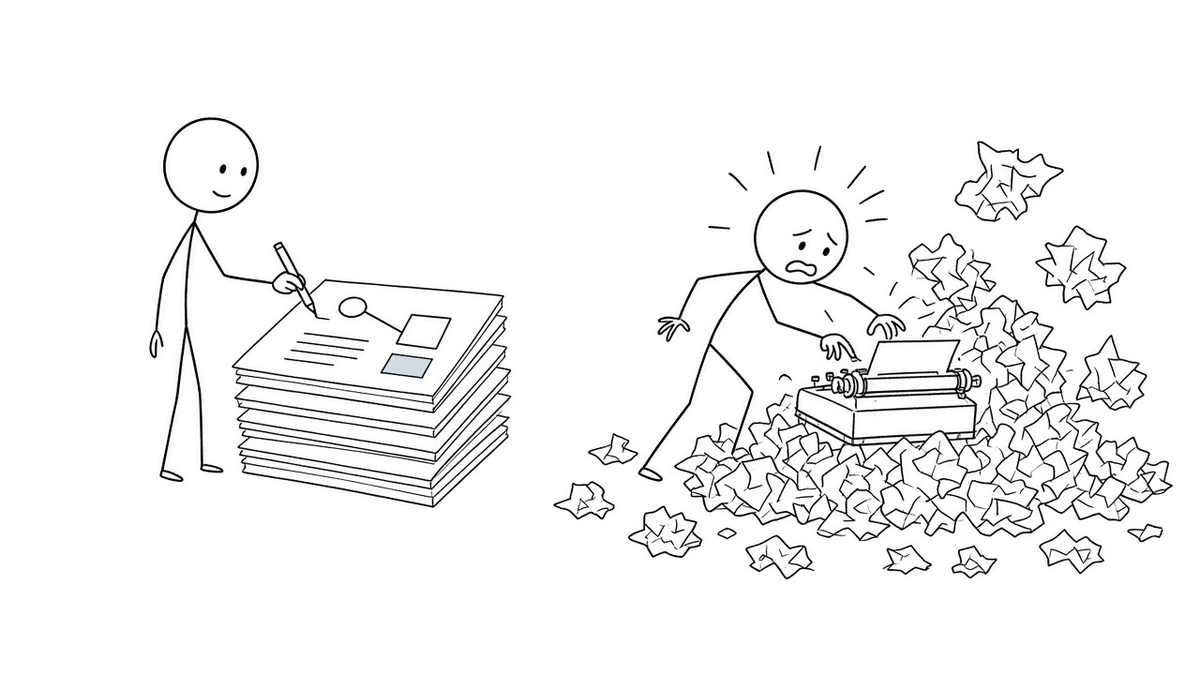
It's the difference between fixing a typo with a pen and retyping the whole letter. Retyping might be perfect. But if you retype it, you're now responsible for the whole letter.
How to edit a PPTX without PowerPoint, in your browser
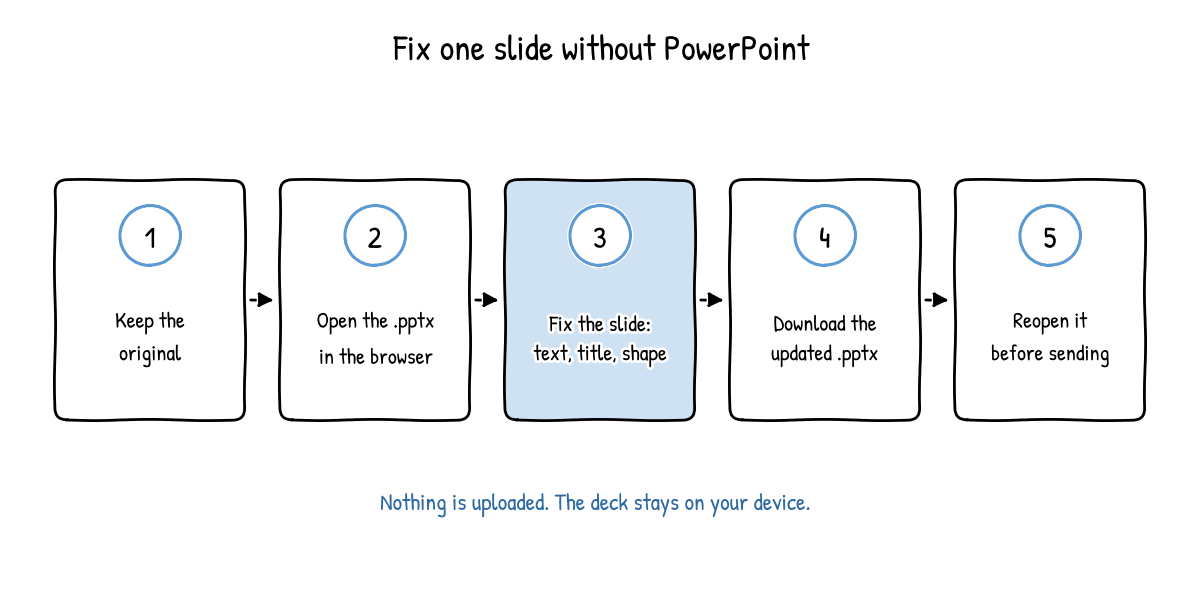
EditDocx opens .pptx files directly in your browser tab. It's free, with no account, and you open the file from your computer. Nothing is uploaded, and the deck stays on your device.
- Keep the original. Save the attachment and don't overwrite it. If anything goes wrong, you want the untouched version.
- Open the PowerPoint editor on EditDocx and open the
.pptxfrom your computer. (The homepage also has a "Pitch Deck" quick-start if you ever need to start a deck from scratch.) - Find the slide and fix it. You can edit text, shapes, and slides: fix the date, change a title, or nudge a shape that's out of place.
- Download the updated .pptx. It's a new file. Give it a clear name, like
deck-fixed-date.pptx. - Reopen the downloaded file before you send it. Flip through it, not just slide 7. Check that it's the file you think it is.
Recent decks stay in this browser only, so they won't follow you to another computer. If you're on a shared or library machine, that's a feature.
If the file is a Word document instead, with one wrong word, the same idea applies. See How to Edit Word Online Free.
Three small checks that save big embarrassment
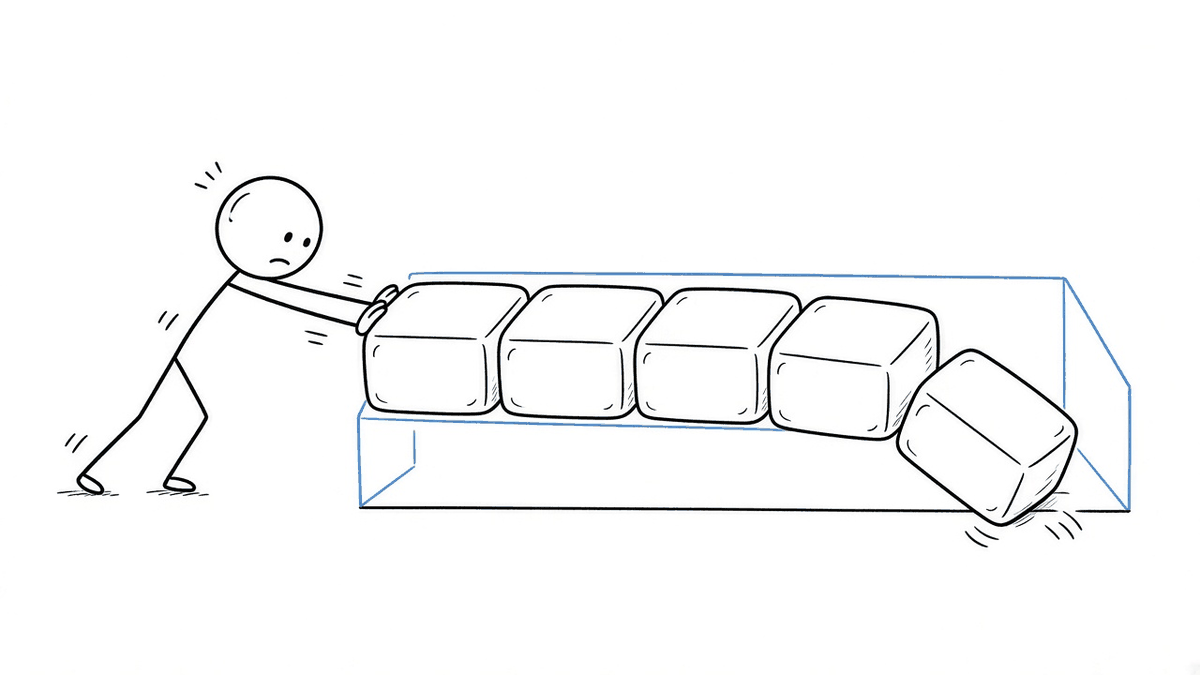
Check the fonts. A .pptx usually says which font to use, but it often doesn't include the font itself. If the deck uses a font your computer doesn't have, whatever opens it will substitute something similar. "Similar" can mean wider, and wider text can spill out of a box or wrap onto a new line. If a slide looks oddly cramped on your screen, that may be a font swap on your machine, not a problem in the file. The person presenting on a computer with the right font may see it just fine. Still, avoid "fixing" spacing that only looks wrong because of a missing font.
Reopen the download. Slightly paranoid, very useful. It confirms you're sending the edited file, not the original, and that the edit stuck. The same habit works for Word files too, as covered in Edit DOCX on Mac or Chromebook Without Word.
Keep the original. Send the fixed version, but don't delete the old one until the meeting is over. It's free insurance.
When to hand it back
Some decks are elaborate. They have animations, slide transitions, SmartArt diagrams, charts linked to spreadsheets, embedded video, or macros. A small text fix in a browser editor isn't the place to test how all of that survives. If the deck leans on those, the cautious move is to make the fix in desktop PowerPoint, or reply, "Found it: slide 7 should say 2026," and let the owner change it in their copy.
That's not a failure. It's just knowing which tool fits the job. Most of the time the job is one date on one slide, and a browser tab is plenty.
FAQ
Can I edit a PPTX file without PowerPoint?
Yes. Browser-based editors can open a .pptx and let you change text, shapes, and slides, then download a .pptx again. For a small fix, editing the original file is usually safer than converting it to another format and back.
Why did my slides change after using Google Slides? Google Slides converts the deck into its own format and converts it back when you download. Things like spacing, fonts, and layout details can shift in those two conversions.
Why does the text look different on my computer? Probably fonts. If the deck uses a font your computer doesn't have, a substitute is shown, and it may be wider or narrower than the original.
Does EditDocx upload my presentation? No. You open the deck from your computer and edit it in the browser tab. The deck stays on your device, and recent decks are kept only in that browser.