Edit DOCX on Mac or Chromebook Without Word — Fidelity Guide
Edit DOCX on Mac or Chromebook without Microsoft Word — no upload, no account. What shifts (tables, fonts, page breaks) and how to verify before you send.
Edit DOCX on Mac or Chromebook without Microsoft Word: open the file in Safari or Chrome, edit everyday text, download, and check it before you send — no Office install, no account, no upload.
If you’ve ever opened a Word file in Google Docs and watched a table jump, or seen page two become page three because a font wasn’t there, you already know the worry: after an online edit, will their Word still look like what you meant to send?
What you see in the browser isn’t the whole story. The useful check is to download the file and open it in a second program — Word, WPS, or LibreOffice, whichever the other person actually uses.
EditDocx is aimed at ordinary documents: body text, styles, lists, common tables, images, light comments and tracked changes. It won’t match every publisher template pixel for pixel. Charts, SmartArt, OLE, macros, and encrypted files simply don’t work here; use desktop Word for those. When the installed app is the better choice is covered in the comparison post.
What tends to go wrong
Dense tables are the usual culprit. Change the text in the cells and leave the grid alone. Nested tables and messy merges are where columns start wandering.
Designed letterhead is another. If the header uses a different first page plus odd and even pages, don’t restyle it in the browser. Fix the body and leave the stationery.
Missing fonts are quieter. The file may still name the original typeface, but the screen substitutes something wider or narrower, so line breaks move and the page count follows. If you don’t know what the recipient has installed, stick to common fonts. If the canvas already looks wrong because a company font is missing, don’t “fix” it by changing sizes and adding extra returns — you’ll write the substitution into the file. Download it and open it on a machine that has the font.
Floating pictures behave more reliably if you make them inline while you edit. Tracked changes plus outline numbering is fine for a sentence or a comment; don’t do structural surgery on a long styled contract in the browser. PDF export freezes the browser layout, not Word’s printer, so get the .docx right first. There’s no EditDocx watermark on the PDF, and you shouldn’t assume it’s encrypted. Tagged, accessible PDF still wants desktop Word. Fields like DATE, PAGE, and FILENAME may need Update Fields after you download. Numbers belong in the spreadsheet canvas; Word tables don’t sort like Excel.
None of that means you should never edit in a browser. It means change what you came to change, then look at the download in the program your recipient will use. The edit steps themselves are in how to open, edit, and download.
A quick check before you send
Keep the original untouched. Edit in the editor. Download the DOCX (export PDF only after that looks right). Open it in Word, WPS, or LibreOffice. Glance at the first page, the last page, every table you touched, headers, and nearby images, then attach.

On a shared PC, copy the download off the machine first. Don’t email it from a session that’s about to wipe itself and only then wonder whether the layout survived.
Notes for the computer you’re actually on
The editor doesn’t change. The machine changes what you have to be careful about.
On a Chromebook, drag from the Files app (Downloads, USB, Drive). You don’t need the Android Word app. School-managed devices still have to allow downloads, pop-ups, and site storage. Keyboard Save is not a file in Downloads.
On a Mac without Word, drag from Finder; the download lands in ~/Downloads. Pages opens many Word files and sometimes reshuffles layout on the way back. Word Online wants a Microsoft account and OneDrive. Safari and Chrome both work for everyday documents — if a complex file fails in one, try the other before deciding it isn’t supported. Strict content blockers can break the editor, so allow editdocx.net. macOS likes names like Offer-Letter (1).docx; rename before you send.
On Linux, a current Firefox or Chromium is enough for everyday .docx. Distros with few proprietary fonts will substitute more, so check the download.
On iPad (Safari), keep it to light edits — paragraphs, dates, simple tables — then download. Zoom for tight cells. A hardware keyboard helps. This isn’t the Word iPad app.
On a guest, library, or airport PC, don’t sign into personal Microsoft or Google accounts. Use a private window, download to USB or your phone, and clear site data. A timed session will throw away anything you only saved in the browser.
On a locked-down work or school PC, you may not have install rights. The browser might be allowed; DLP might still block the site. This isn’t a guide to getting around that. If records policy names SharePoint, follow the policy.
Students run into the same pattern as the library: no personal cloud login on the lab computer, download before the session ends, and check the file on a machine you trust before uploading to Canvas or Moodle.
If you want to reproduce a published test
We keep a small public file, a checksum, and a date, so the claim isn’t just “high fidelity.”
| Field | Value |
|---|---|
| Download | editdocx-compatibility-baseline.docx |
| SHA-256 | 26bdee56fbbd33eeaf44f73e90502eb2626414a80a9d33eeab9e87225dc3e5d9 |
| Inside | Styled text, 2×2 table, embedded PNG, header, footer, comment, tracked insert/delete |
| Lab date | 2026-07-16 (Chromium run) |
If the hash doesn’t match, you don’t have the published baseline.
| Feature | Status | Observation |
|---|---|---|
| Paragraph text and direct formatting | pass | Bold, italic, color, size, alignment editable |
| Tables | pass | Cell text, borders, header shading |
| Inline images | partial | PNG stayed in the package; canvas miss in that Chromium run |
| Headers and footers | pass | Text in page regions |
| Comments and tracked revisions | pass | Review workflow available |
| Exact font metrics | partial | Names retained; substitution can change line breaks |
On this small file that’s 4 pass, 2 partial, 0 unsupported. It isn’t a promise about your forty-page template. Engines change, so the date is part of the claim. “Pass” means the feature was available in the tested workflow, not that every Word version, operating system, and font set will match. This run recorded import and browser rendering; we still don’t have an automated comparison of the exported package.
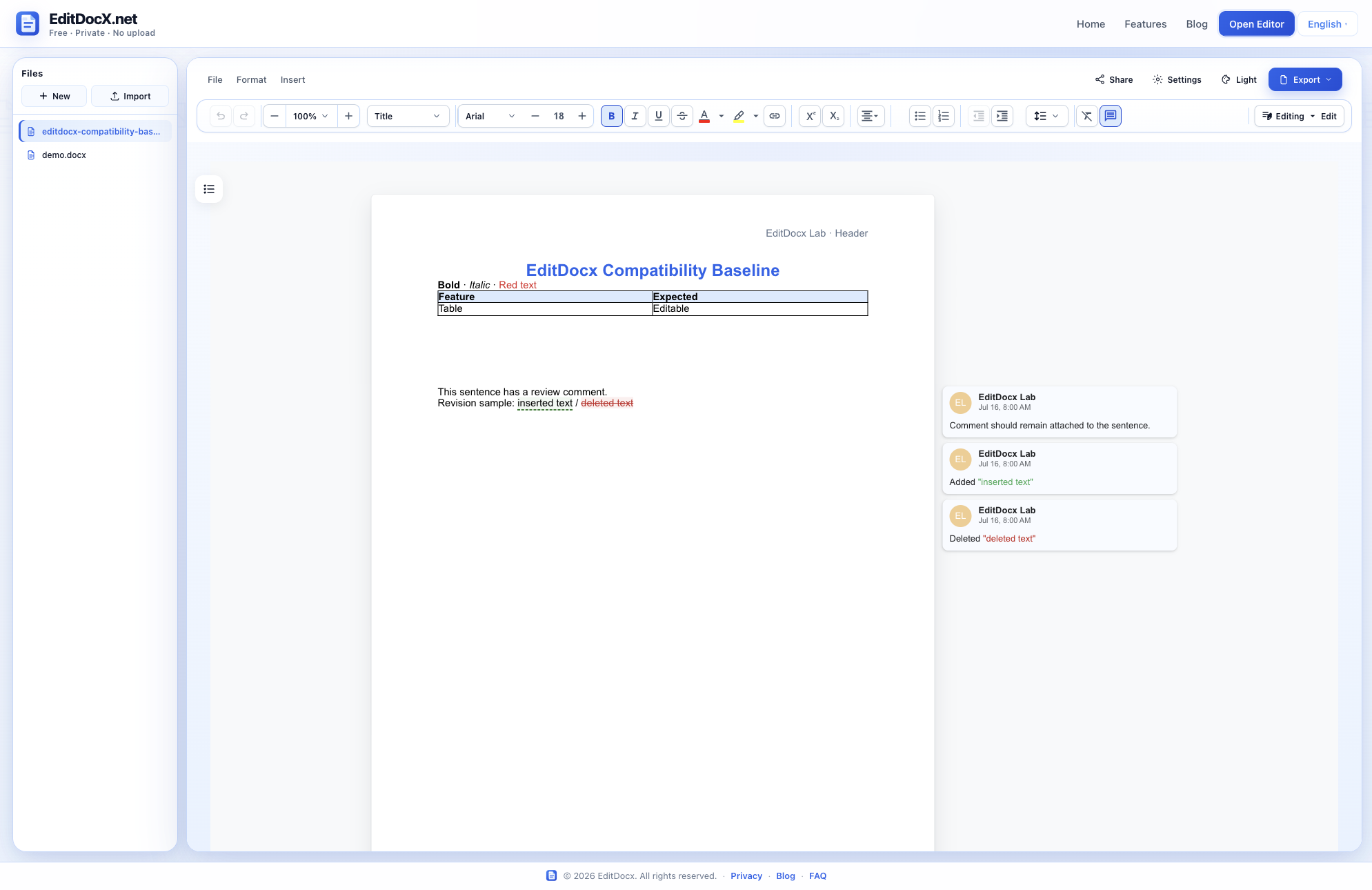
The missing inline image is listed as partial instead of being left out.
If you want to repeat it, give it about ten minutes: check the hash (shasum -a 256 or sha256sum), import in a private window, mark pass/partial/fail for your browser, download, reopen in Word, and look at the image — Word may show a PNG the canvas skipped. On a copy, change one cell and accept or reject one revision. When you write to support, include the browser, OS, and date. Don’t attach confidential customer files.
FAQ
Does EditDocx guarantee the same layout as Microsoft Word? No. It’s for everyday documents. Check what you’re about to send.
Why only one test file? It’s small and public on purpose. The tables and checksum on this page are the published record.
Can I trust a “pass” forever? No. Run it again after major editor releases.
Are tables unsupported? Ordinary tables work. Dense merges need extra checking.
Open the editor · How to edit and download · Where the file goes · Which tool to use